"Is there a way to transfer PDF to JPG on my Mac? I want to share the PDF document as images on my Facebook, and insert the images to my Word. Any help?"
PDF is a file format developed by Adobe as a means of distributing platform-independent documents, but not convenient for sharing on Web, inserting to Word, PPT or other documents. For wider sharing and usage of PDF files on Mac, converting PDF to JPG images is a good way. So, how to convert PDF to JPG on Mac?


Doremisoft PDF to Image Converter for Mac can help you convert PDF to JPG on Mac easily. It will retain the specify page range of the original PDF, and automatically switch them to JPG image format. After the conversion, you can view PDF eBooks in JPG without Adobe Acrobat, which enables you to share PDF files with JPG images on Mac.
Step by Step to Convert PDF to JPG on Mac with Mac PDF to JPG Converter
Step1: Download and install Doremisoft PDF to Image Converter for Mac, run it.
Step2: Click "Add Files" button to add PDF files you want to convert, you can add multiple PDF files to convert at a time. Meanwhile, this PDF to JPG Converter Mac enables you to select specific pages from each PDF file to convert.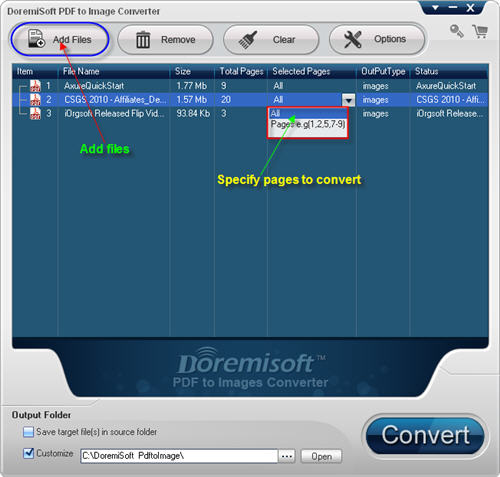
Step3: Select the output format as JPG by clicking "Options" button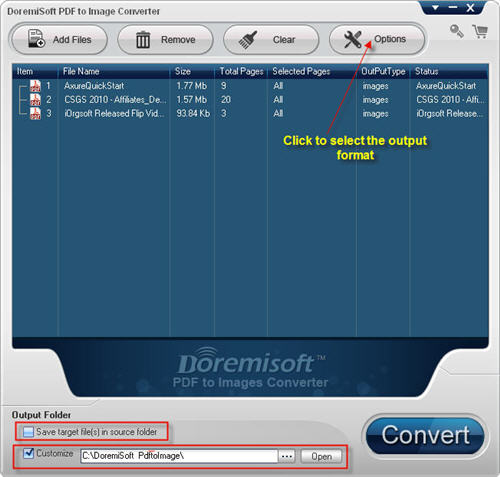
Step4: Click the big "Convert" button to start the PDF to JPG Mac conversion
More reference of this Mac PDF to JPG Converter:
Besides converting PDF to JPG on Mac, it also supports converting PDF to other common picture formats, such as PNG, BMP, and TIFF. If your PDF document is encrypted, you can convert it with this program as well.